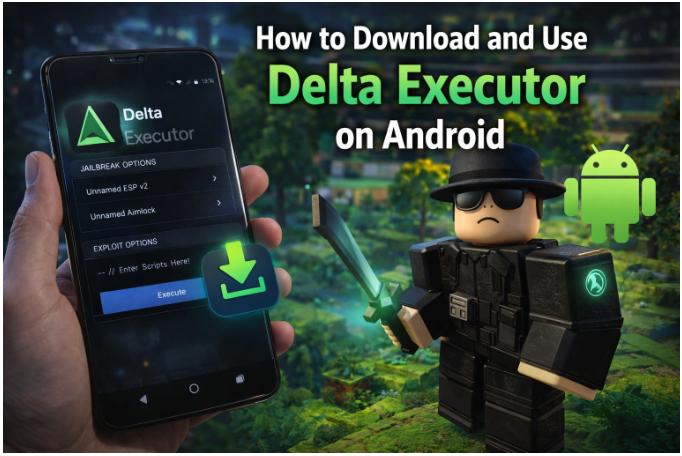
Delta Executor has become one of the most widely used script execution tools in the Roblox mobile community. With each update, the development team refines stability, patches compatibility issues with Roblox’s latest client versions, and adds new scripting capabilities. Version 2.716 continues that pattern — and for Android users who want to run Lua scripts inside Roblox without a PC, it remains one of the more reliable options available right now.
This guide covers what’s new in v2.716, what your device needs to run it, and how the installation process works on Android.
What Is Delta Executor
Delta Executor is a Roblox script executor built specifically for Android. It allows users to inject and run Lua-based scripts inside Roblox games, enabling features like auto-farm, speed modifications, ESP, and other custom gameplay functions that the base Roblox client doesn’t support.
Unlike PC-based executors that hook into the game through desktop processes, Delta runs entirely on-device. It communicates with the Roblox Android client through an injection method that gets updated regularly to stay ahead of Roblox’s anti-cheat detection patches.
The tool is distributed as an APK — it’s not available on the Google Play Store, so installation requires enabling unknown sources on your Android device.
What’s New in Delta Executor v2.716
Version 2.716 brings several meaningful changes over the previous build:
Improved injection stability. Earlier versions occasionally failed to attach to the Roblox process on first attempt, requiring multiple relaunches. V2.716 addresses this with a revised injection routine that attaches more consistently across different Android versions.
Updated Roblox client compatibility. Roblox pushes client updates frequently — sometimes multiple times per week. Each update can break executor functionality entirely. V2.716 is patched to work with Roblox’s current Android client version at the time of its release, which is the most important practical change for day-to-day use.
Refined script hub. The built-in script library has been updated with newer script entries and removed outdated ones that no longer function. Popular game-specific scripts for titles like Blox Fruits, Pet Simulator, and Arsenal have been refreshed.
UI responsiveness improvements. The executor interface loads faster on mid-range devices and the script input window handles longer scripts without the lag that affected some users on v2.700 and earlier builds.
Device Requirements
Delta Executor v2.716 runs on most Android devices from the last four to five years. The general requirements are:
- Android version: Android 8.0 (Oreo) or higher. Android 11 and above recommended for best compatibility.
- RAM: Minimum 3GB. 4GB or more recommended for smooth simultaneous operation with Roblox.
- Storage: At least 200MB free space for the APK and associated files.
- Roblox: The latest version of Roblox installed from the Play Store. Using an outdated Roblox client will cause injection failure regardless of the executor version.
- Unknown sources: Must be enabled in your device settings under Security or Install unknown apps, depending on your Android skin.
Devices running MIUI (Xiaomi), One UI (Samsung), and ColorOS (OPPO/Realme) all work with Delta. MIUI users sometimes need to disable MIUI optimization in developer options if injection behaves inconsistently.
How to Install Delta Executor v2.716 on Android
Step 1: Enable unknown sources Go to Settings → Security (or Privacy on some skins) → Install unknown apps. Select your file manager or browser and toggle permission on. This allows APK files downloaded outside the Play Store to install.
Step 2: Download the APK Find the official Delta Executor v2.716 APK from https://deltaxecutr.com.mx/
Step 3: Install the APK Open your file manager, navigate to your Downloads folder, and tap the APK file. Android will prompt you to confirm installation. Tap Install and wait for the process to complete.
Step 4: Launch Delta Executor Open Delta Executor from your app drawer. On first launch it may request storage permissions — grant them. The tool will run a brief initialization check before the main interface loads.
Step 5: Open Roblox and inject Launch Roblox and enter any game. Switch back to Delta Executor and tap the Inject button. Wait for the confirmation that injection was successful — this typically takes five to fifteen seconds depending on your device speed.
Step 6: Run your script Once injected, paste your Lua script into the script input field and tap Execute. The script will run inside your active Roblox session.
Tips for Stable Use
Always update both tools together. When Roblox updates its client, wait for a corresponding Delta update before attempting injection. Running an outdated executor against a new Roblox client version is the most common cause of crashes and failed injections.
Use a secondary Roblox account. Script execution carries a ban risk. Most experienced users in the executor community keep their main account separate from the account they use with script tools.
Keep scripts from trusted sources. Malicious Lua scripts exist in the wild. Scripts that ask for your Roblox credentials or redirect you to external URLs should be discarded immediately.
Clear Delta’s cache periodically. Over time, cached script data can cause the tool to slow down. Go to Android Settings → Apps → Delta Executor → Storage → Clear Cache to reset it.
Final Thoughts
Delta Executor v2.716 is a solid update for Android users in the Roblox scripting community. The injection reliability improvements alone make it worth updating from earlier builds, and the refreshed script hub saves time for users who rely on the built-in library. As with any executor, staying current with both the tool and the Roblox client version is what separates a smooth experience from a frustrating one.